

How to Convert an Image to Ghibli Style in ChatGPT for Free: A Step by Step Guide
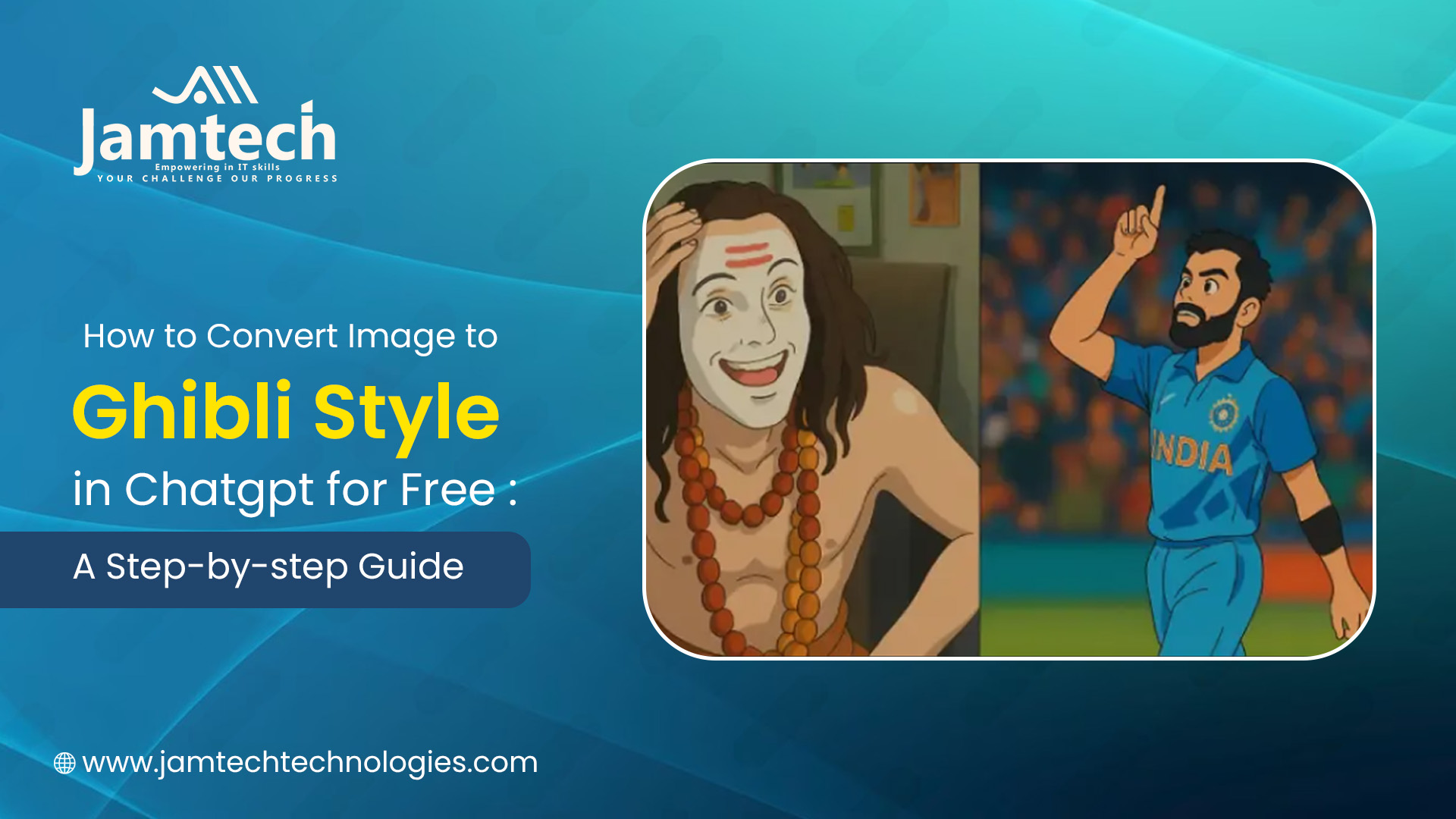
Studio Ghibli, an enchanting art in its times, is popularized around the world for its breathtaking and dreamy landscapes, soft colors, and whimsical characters. If you ever sought to convert your photos or digital art into Ghibli-inspired pieces, your wish has come true! With ChatGPT on your side, along with free AI tools, the ambiance of such magic can now come into existence without burning a hole in your pocket.
This blog will help you with the whole process, starting from choosing the right tool and finishing with image refinement.
Let us jump right in!
What is the Ghibli Art Style?
Grasping the Ghibli Art StyleBefore converting your image, it is important to appreciate what makes an image distinctive of the Studio Ghibli style:
Soft, Pastel Colors: Ghibli films employ delicate colors that are saturated, but low in contrast.
HandPainted Textures: The style emulates old-style watercolor and cel animated style.
Expressive Lighting: Radiant sunlight, glowing skies, and soft shadowing are an intrinsic part of the Ghibli visuals.
Whimsical Details: Floating islands, lush forests, and dreamlike environments are prevalent.
Because ChatGPT does not have editing capabilities per se, we will use it to generate fully realized prompts you can use in AI image generators such as
Leonardo.AI, Bing Image Creator, or Playground AI, all of which will recreate the Ghibli style at no cost.
Tools You Will Use (All Free!)
ChatGPT (Free Version)
To create accurate AI art prompts.
Free AI Image Generators
Examples like Bing Image Creator (DALL┬ÀE 3) offer free credits.
Leonardo.AI allows free daily tokens.
Playground AI involves a free Stable Diffusion offering.
Basic Image Editors (Optional)
For example: GIMP, Canva, or Photopea for hack jobs.
Step 1: Getting Your Image Ready to Go
Before you can create your Ghibli style image, you need to get your image ready:
High-Resolution: Ghibli works best with bright, clear images.
Simple Background: Landscapes and portrait types will convert much better than busy backgrounds.
Cropping (optional): Focus on the main subject of the image (for example, taking a photo of a face or a landscape).
Example: If you have a portrait, you can use Remove.bg (free) to make any distracting backgrounds disappear.
Step 2: Using ChatGPT to Generate Prompts
Because AI art software requires text prompts, you can use ChatGPT to write that perfect description.
Example Prompt for ChatGPT:
Act as an Expert AI Art Prompt Engineer.
I want to create my image in the style of Studio Ghibli's art. Please write me a detailed prompt that is optimized for an AI image generator such as DALL•E or Stable Diffusion.
Please include keywords like Studio Ghibli style, whimsical, soft lighting, and watercolor textures.
ChatGPT's Output (Sample Prompt):
A stunning Studio Ghibli style illustration of [describe your image]. Soft pastel colors, dreamlike vibe, soft, gentle light streaming down as sun rays, watercolor style textures all with lots of details but with whimsical backgrounds that are similar to Spirited Away or My Neighbor Totoro. Super detailed, and 4k anime-inspired.
Pro Tip: You can upload your image to ChatGPT4 (if you have access) and ask ChatGPT to generate prompts that are based on your uploaded image.
Step 3: Converting Your Image with Free AI Tools
Now, use the generated prompt in a free AI art tool:
Option 1: Bing Image Creator (Free DALL┬ÀE 3)
1. Go to[Bing Image Creator](https://www.bing.com/create).
2. Paste your ChatGPT-generated prompt.
3. Click "Create" and download the best result.
Option 2: Leonardo.AI (Free Credits)
1. Sign up at [Leonardo.AI](https://leonardo.ai/).
2. Select "AI Image Generation."
3. Upload your image + prompt, and choose "Ghibli Style" (if available).
4. Generate and refine.
Option 3: Playground AI (Stable Diffusion)
1. Visit [Playground AI](https://playgroundai.com/).
2. Enter your prompt, and select the "Stable Diffusion" model.
3. Adjust settings (e.g., "Anime Art" filter).
4. Generate and download.
Step 4: Refining & Enhancing the Ghibli Effect
AI results may need slight tweaks. Use free editors:
1. Adjusting Colors (GIMP/Photopea)
Increase saturation slightly.
Apply a soft glow (Filters  Blur  Gaussian Blur + Layer Overlay).
Add a warm tone (Color Balance  More yellows/reds).
2. Adding GhibliStyle Elements (Canva/Photoshop)
Overlay clouds, sparkles, or foliage (PNG assets from [Pixabay](https://pixabay.com/)).
Use soft brushes to enhance lighting.
Bonus Tips for a Perfect Ghibli Look
Use Reference Images: Compare with Ghibli stills for accuracy.
Nature Themes Work Best: Forests, skies, and villages convert well.
Manual TouchUps: Refine edges with digital brushes if needed.
Conclusion
You can now easily transform an image into Studio Ghibli's blissful art style for free, thanks to ChatGPT and AI tools. Use this guide - by creating the right prompt, using free AI generators, and reworking the output - to produce stunning artwork in the Studio Ghibli style in no time.
The Final Step
'Share Your Art'!
Once satisfied, share your masterpiece on social media or use it as a wallpaper, print, or digital gift.
Upload your image, generate a prompt with ChatGPT, and let AI work its Ghibli magic!
Ready to grow your business with Jamtech?
Talk to our experts about your next digital project.